
is now in public beta!
Published on: July 9, 2020
7 min read
How to integrate Azure DevOps repositories with GitLab
How to keep your code in an Azure DevOps repository and run CI/CD with GitLab pipelines.


Recently we’ve been asked by several people if it is possible to integrate between Azure DevOps/VSTS (Visual Studio Team Services) source code management and GitLab. They are looking for a modern CI/CD solution like GitLab, but as part of a gradual transition they still need to keep managing their code in Azure DevOps/VSTS.
Does Azure DevOps integrate with GitLab?
Yes, Azure DevOps Services does integrate with GitLab.
Although we of course recommend using GitLab CI/CD together with our built-in GitLab SCM, this integration of Azure DevOps source code management and GitLab makes it possible to migrate slowly from Azure DevOps by leaving your code in the Azure DevOps repository while you adopt GitLab CI/CD. This integration is possible with both the self-managed and SaaS versions of GitLab. The integration works only with Azure DevOps/VSTS git version control. TFVC (Team Foundation Version Control) isn’t supported.
In GitLab, there are two features that enable this integration:
GitLab CI/CD for external repositories
What is a repository in DevOps?
Code repositories in tools like GitLab and Azure exist to house all source code. Sometimes these repositories are referenced as a DevOps “repo” or a source repository. Whatever the title, code repositories provide a place where developers can work to ensure high code quality. GitLab uses a git-based repository for source code management with version control. It lets GitLab users perform code reviews and easily solve developer issues.
What is the difference between GitLab and Azure DevOps?
Azure DevOps has a range of services for managing the development lifecycle. Some of its main features include agile planning boards, private git repos for source code management, and Azure pipelines.
GitLab is a single platform for the entire DevSecOps lifecycle and includes the following:
- Planning and collaboration
- Source code management
- Code reviews
- CI/CD pipelines
- Constant security scanning and monitoring
- Advanced deployments
- Vulnerability management
GitLab can help manage the entire DevSecOps lifecycle to deliver software quickly and efficiently while bolstering security and compliance.
How do I connect to Azure from GitLab?
It may take some time to fully move over from Azure to GitLab for source code management. To smooth the transition, there are simple steps to connect to the Azure integration from GitLab.
- Create a new project in GitLab by clicking the New Project button
 {: .large.center}
 - Choose the ‘CI/CD for external repo’ tab, and click on Repo by URL.
 {: .large.center}
 - Open your repository in Azure DevOps and click Clone
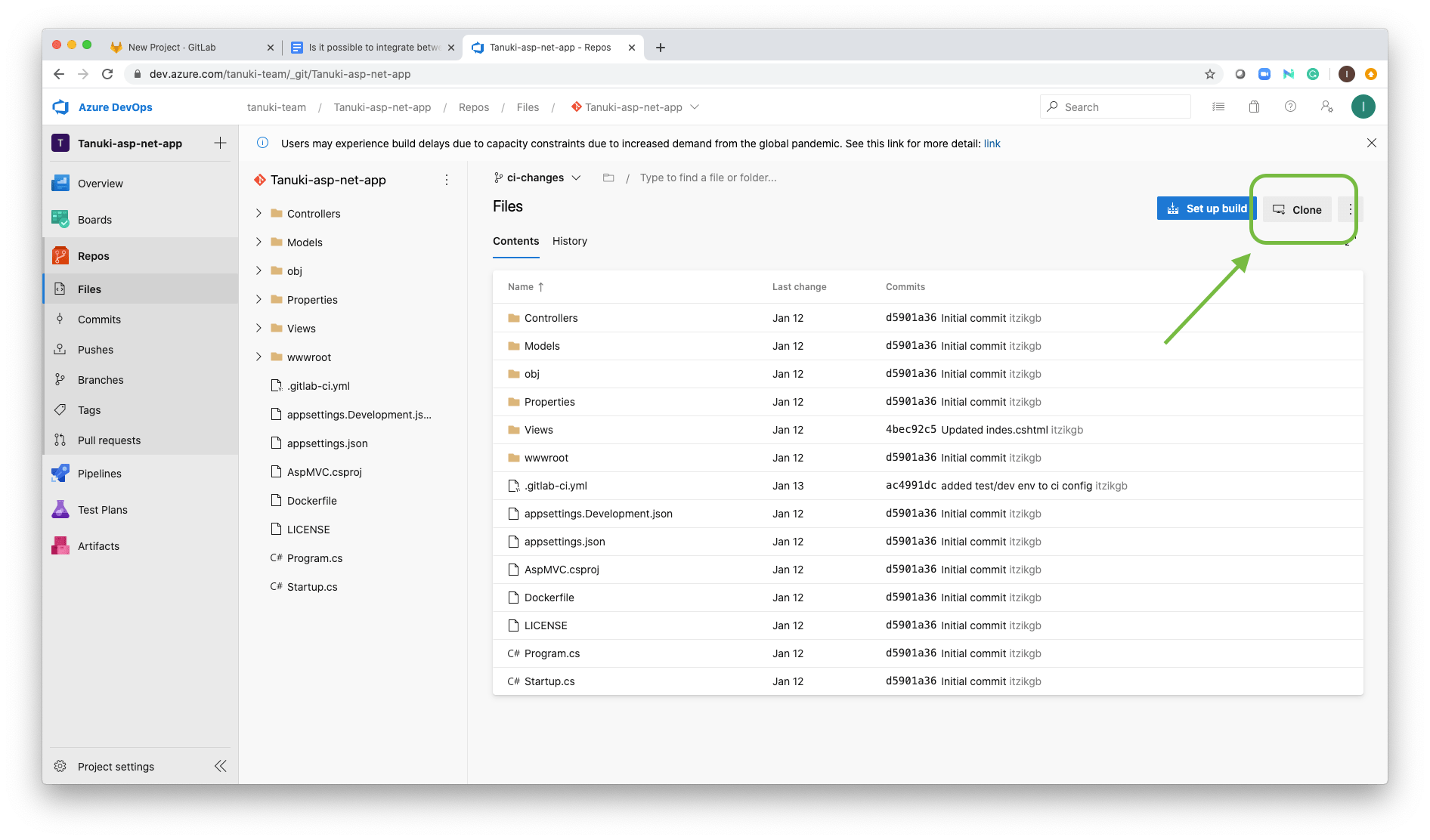 {: .large.center}
 - Copy the URL. If your repository is private, you will need to generate Git credentials – just click this button and copy the username and password.
 {: .large.center}
 - Paste the URL in GitLab under the Git repository URL, give it a name, set the visibility level, and click create project. Add the username and password in case your Azure DevOps repository is private. Note: The repository must be accessible over http://, https:// or git://. When using the http:// or https:// protocols, please provide the exact URL to the repository. HTTP redirects will not be followed.
 {: .large.center}
 - Your project is now successfully Mirrored to GitLab. Now branches, tags, and commits will be synced automatically to GitLab.
- To configure a CI/CD pipeline there are two options:
Before pushing your first commit, open the CI/CD settings in GitLab and enable Auto DevOps. It will set the CI/CD configuration, so each commit in Azure Repos will trigger a CI/CD pipeline in GitLab which will build, test, and deploy your app. 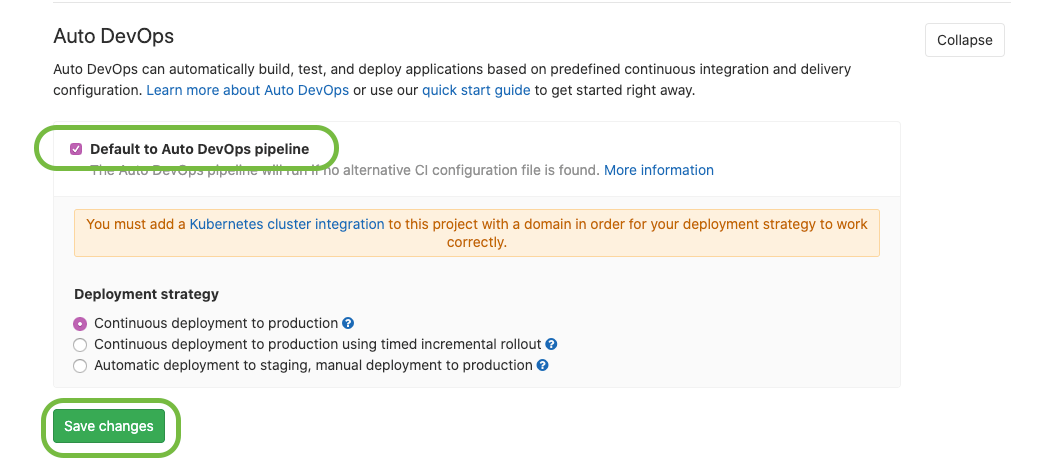 {: .shadow.large.center}
Alternatively, in case you want to define the pipeline configuration yourself instead of using the Auto DevOps, add .gitlab-ci.yml file to your repository root directory. The Yaml code should include your CI/CD definitions. Once this file is included in the root directory a CI/CD pipeline will be triggered for each commit. If you are not familiar with .gitlab-ci.yml, start by creating a file with the name .gitlab-ci.yml and paste the below code to it. This code includes build and test stages, and a job that displays text to the console in each stage. Later on you can add additional scripts to each job, and also add additional jobs and stages. To create more complex pipelines, you can use the pipeline templates that are shipped with GitLab instead of starting it from scracth.
{: .shadow.large.center}
Alternatively, in case you want to define the pipeline configuration yourself instead of using the Auto DevOps, add .gitlab-ci.yml file to your repository root directory. The Yaml code should include your CI/CD definitions. Once this file is included in the root directory a CI/CD pipeline will be triggered for each commit. If you are not familiar with .gitlab-ci.yml, start by creating a file with the name .gitlab-ci.yml and paste the below code to it. This code includes build and test stages, and a job that displays text to the console in each stage. Later on you can add additional scripts to each job, and also add additional jobs and stages. To create more complex pipelines, you can use the pipeline templates that are shipped with GitLab instead of starting it from scracth.
      stages:
  - build
  - test

build:
  stage: build
  script:
    - echo "Build job"

test:
  stage: test
  script:
    - echo "Test job"
That’s it, you are all set!
Suggested development flow
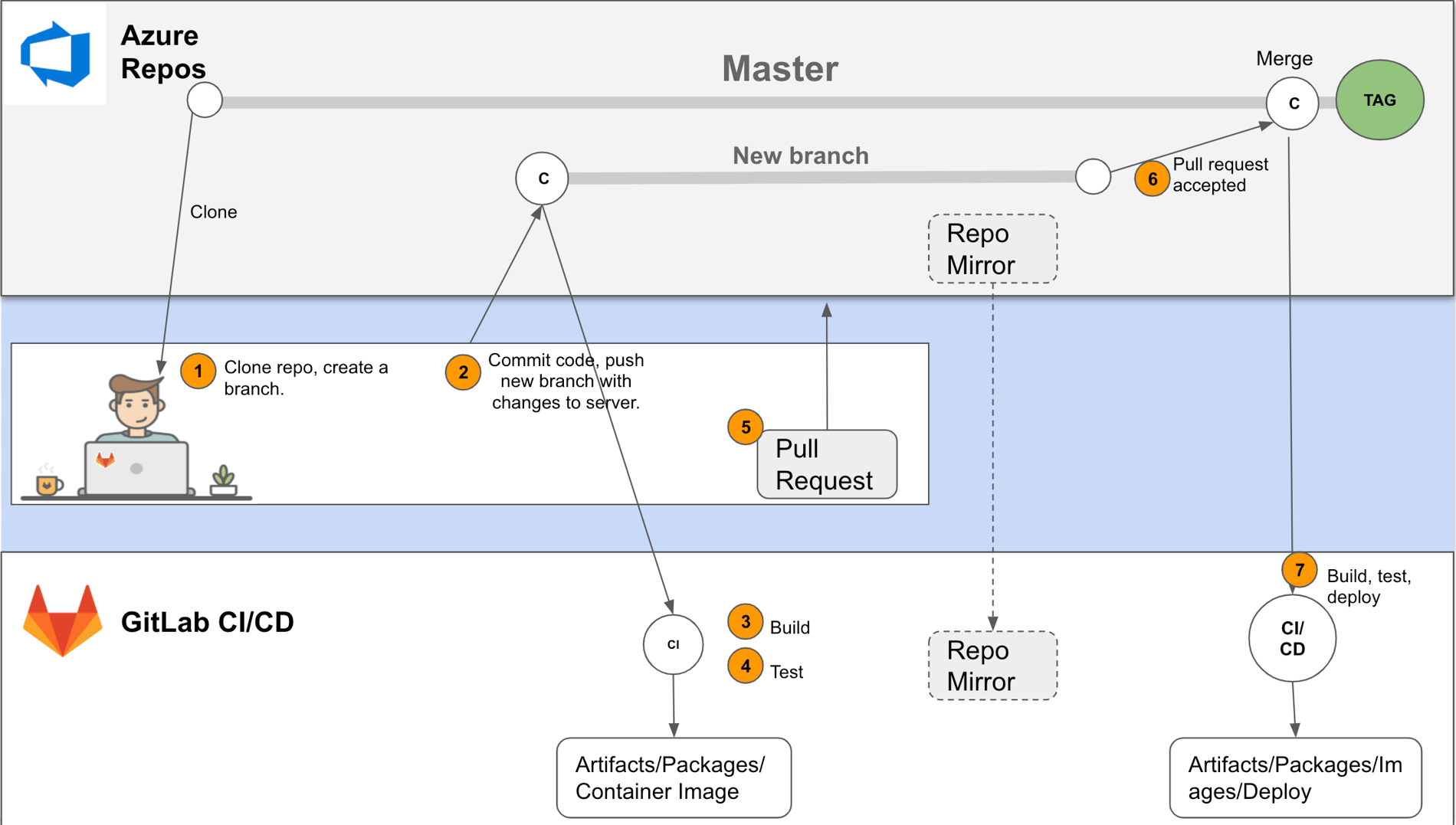 {: .shadow.large.center}
- CODE (Developer IDE of choice) Developer uses the favorite IDE to develop code, clones the repo to the workstation and creates a branch.
 {: .shadow.large.center}
 - COMMIT (GIT) After the feature is developed/the bug is fixed, the developer pushes the work to the Azure Repository server.
 {: .shadow.large.center}
 - BUILD (GitLab) The branch with the commit history will be mirrored to GitLab. The CI/CD pipeline will be triggered. The pipeline will build the code.
 {: .shadow.large.center}
Artifacts will be created, and be available for download. 
If Auto DevOps is enabled, a container image will be created and be pushed to the built-in Container Registry. 
In case a package registry is enabled in the project, packages will be published to the designated package manager. 
4. TEST (GitLab) Security scans, license scans, and other tests are executed as part of the CI pipeline.  {: .shadow.large.center}
- REVIEW & PULL REQUEST (GitLab & Azure DevOps repos) Review pipeline results in GitLab and if the pipeline passed without errors, and the new change hasn’t introduced new vulnerabilities, the developer creates a pull request in Azure DevOps. A code review is started and the developer might need to make a few changes before merging to master. Each commit will trigger a CI/CD pipeline in GitLab.
 {: .shadow.large.center}
 - MERGE (Azure DevOps Repos and GitLab) The Azure DevOps pull request is approved and the branch will be merged to the master branch in the Azure DevOps Repository.
Depending on your pipeline configuration, this merge to the master branch will trigger the CI/CD pipeline in GitLab to validate the merge results, build new packages and container images, and then deploy them. 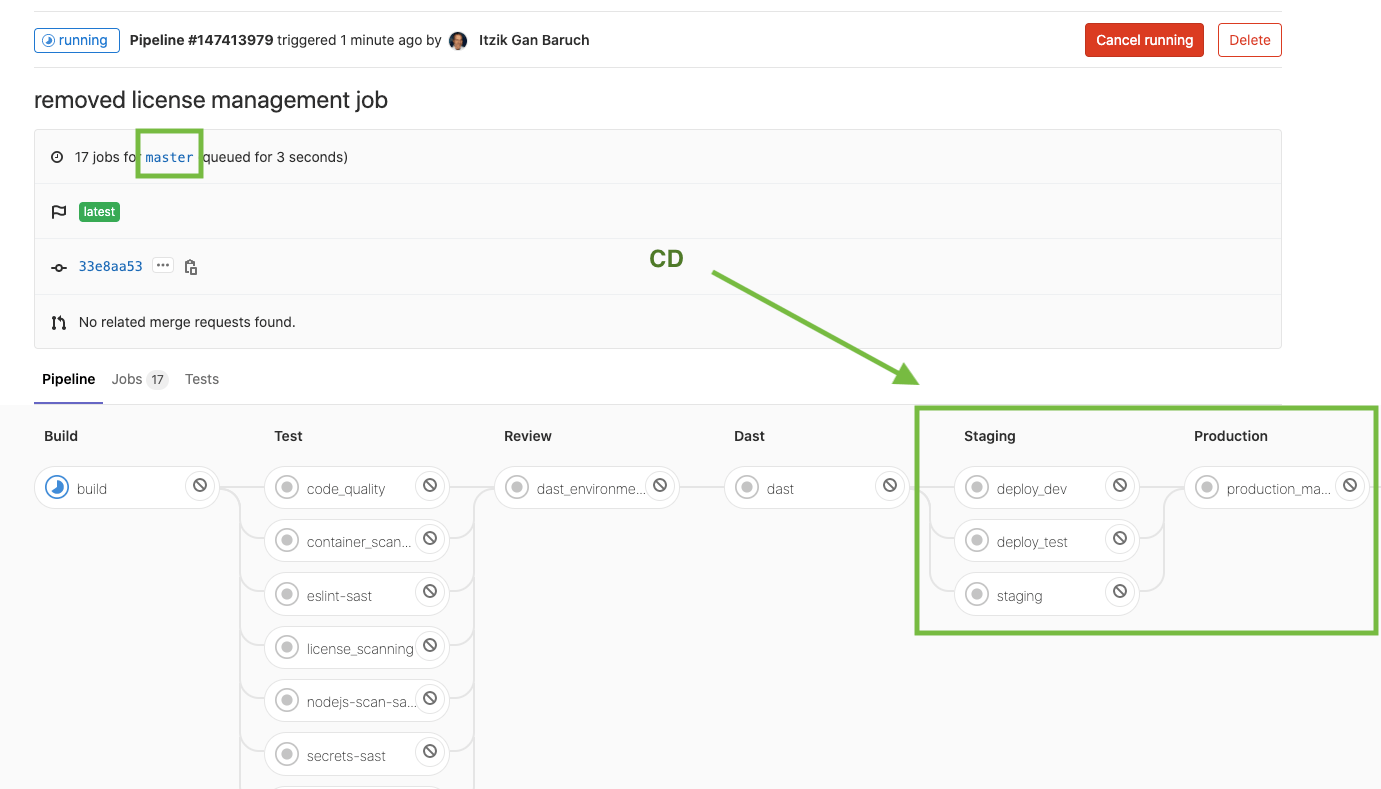 {: .shadow.large.center}
Development workflow demonstration
A solution worth trying
GitLab offers a leading source code management and CI/CD solution in one application which many GitLab customers use together because of the power of this combination. However, we know that sometimes there are constraints that do not allow teams to migrate their repository to GitLab SCM, at least not right away. For these situations, even if it is only temporary, we offer the capability of GitLab CI/CD for external repositories illustrated here.
Read more about GitLab CI/CD:
Forrester report compares between leading CI/CD tools
Autoscale GitLab CI with AWS Fargate
Case Study - how Goldman Sachs improved from 1 build every two weeks to over a thousand per day
Cover image by Aleksey Kuprikov on Unsplash
We want to hear from you
Enjoyed reading this blog post or have questions or feedback? Share your thoughts by creating a new topic in the GitLab community forum.
Share your feedback